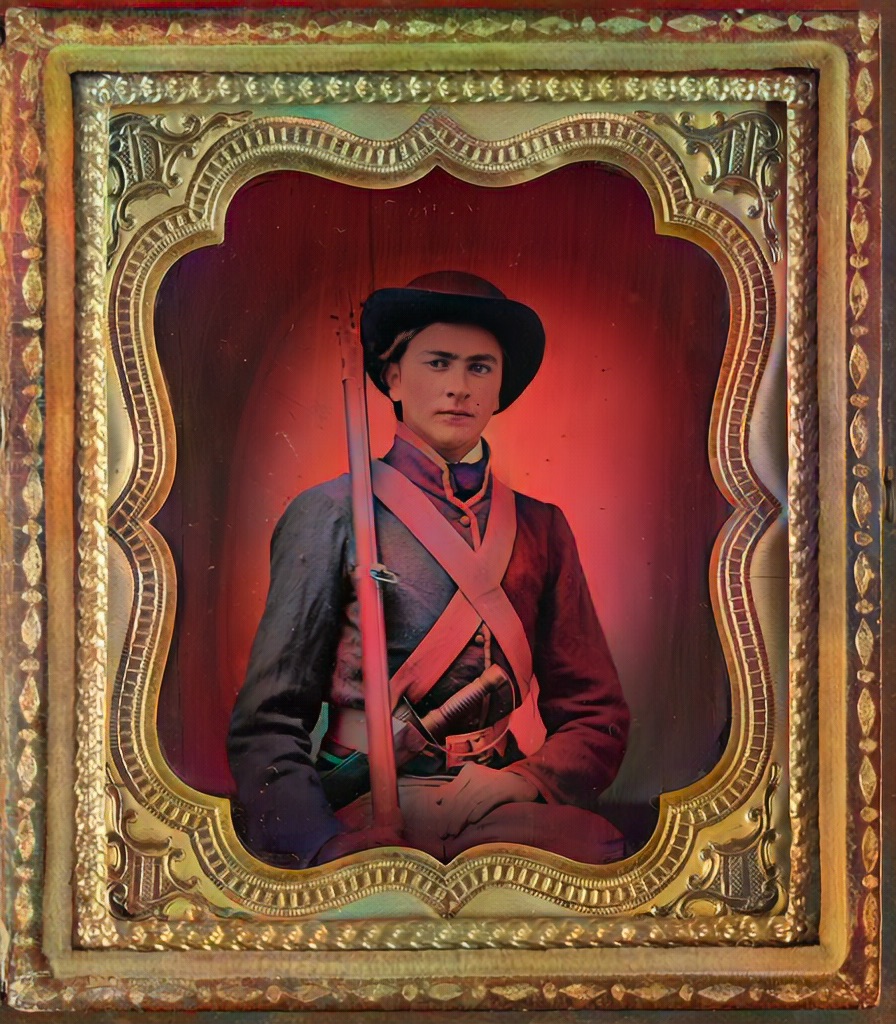
 After
After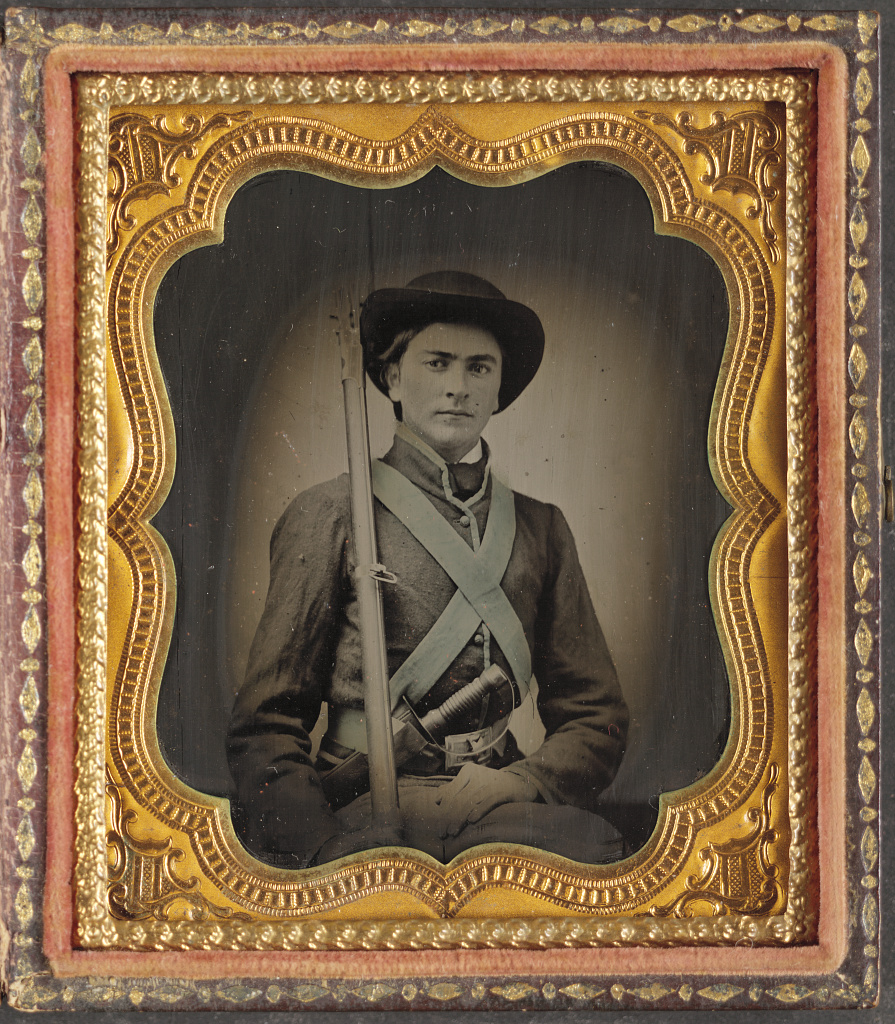 Before
Civil War Ambrotype
A 160-year-old ambrotype in its original case — faded to near-invisibility, then restored and colorized with startling clarity.
NostalgiaPhoto Restore
Restore faded prints, fix scratches, and add color — so the photos look the way you remember the people in them.
Web is live. iPhone via TestFlight. Android in early access. Get the app.
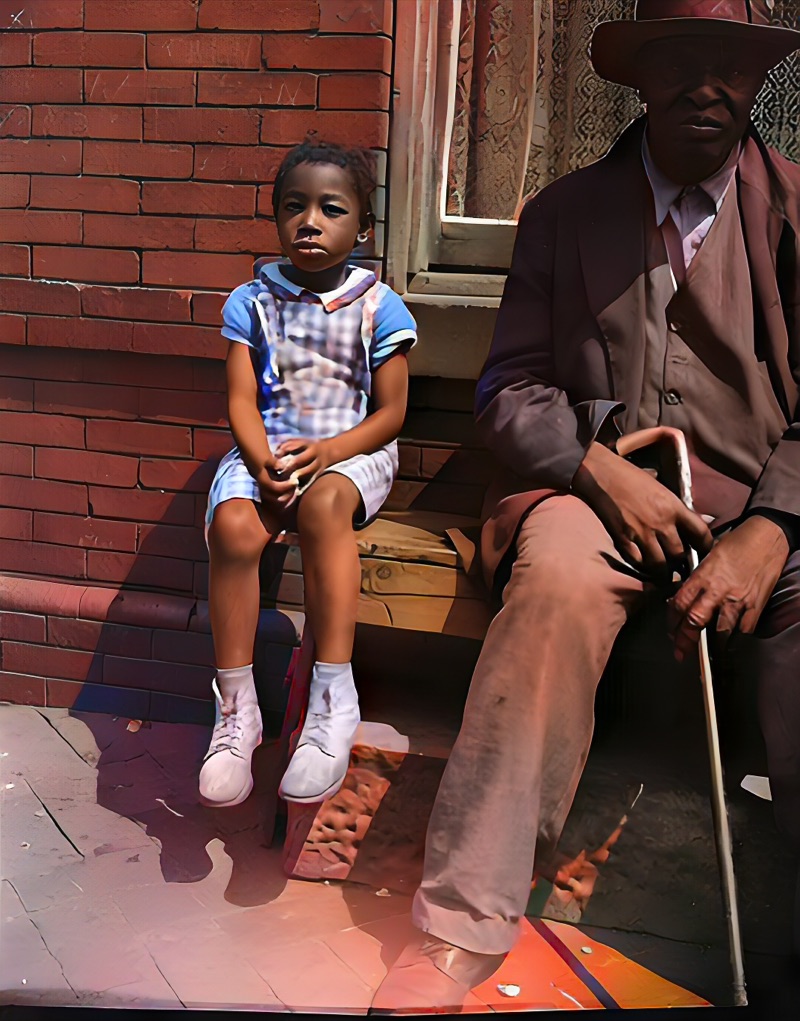 Restored & Colorized
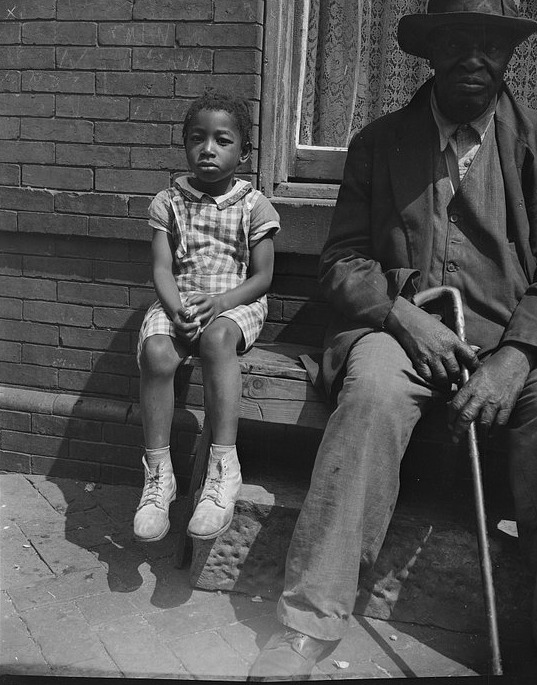 Original
A grandfather and grandchild on the front steps — faded tones recovered, then brought to vivid color with AI.
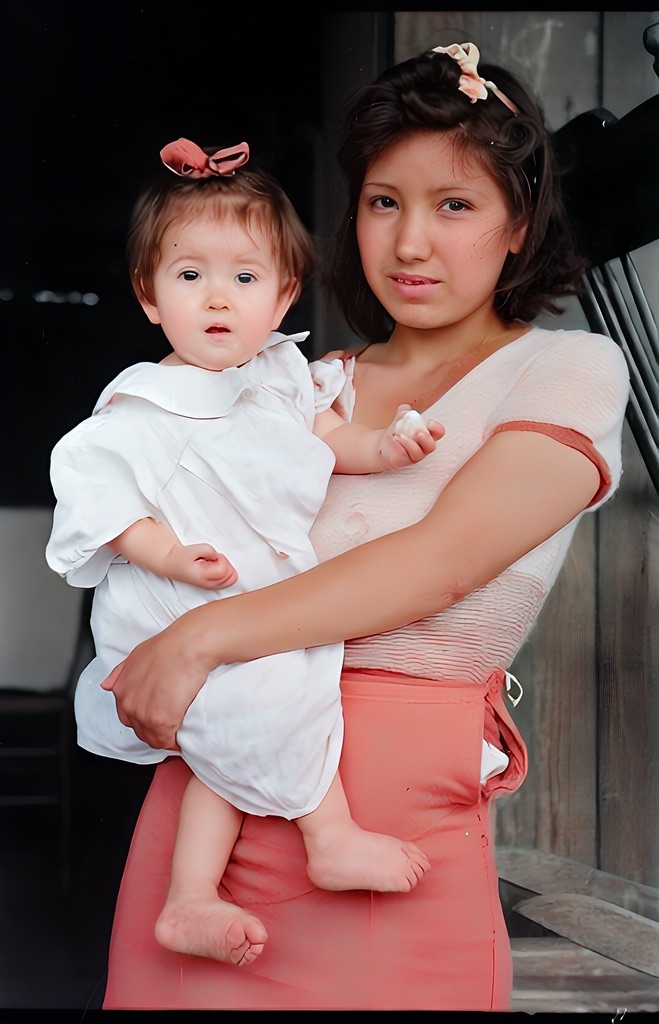 Colorized
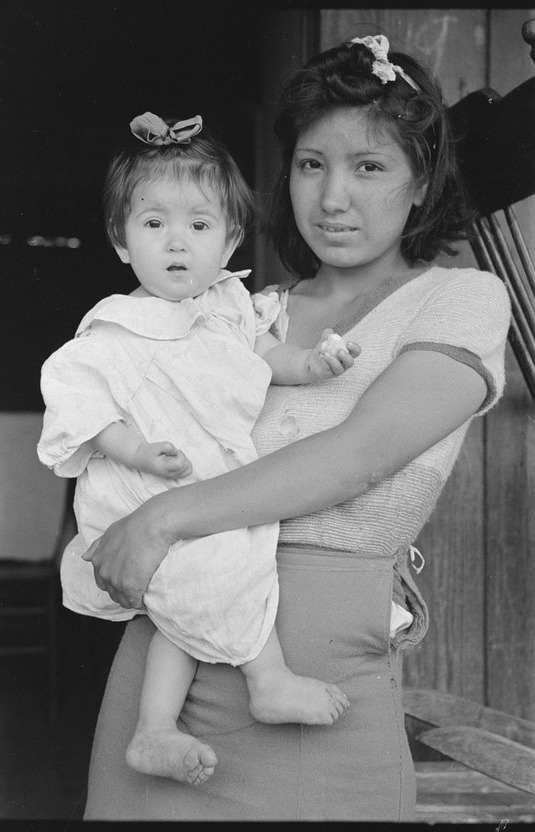 Original
Mother & Child
A faded portrait becomes a living moment again. Nostalgia adds natural color while keeping the likeness and character that make the photo yours.
Pick a damaged photo below. No sign-up needed.
Scan it, snap it with your phone, or use Google PhotoScan. Works with however you digitize photos at home.
AI builds a Photo Insight report for every upload — damage labels, era estimate, a ranked repair plan with safe and optional steps, and conservation notes when your photo needs careful handling. If a better scan would help more than AI, it tells you.
View the original and restored version side by side. Add color or extra detail if you want, or keep the restored version as-is.
Most family photos need careful repair, not maximum AI. Nostalgia fixes the visible damage first, then lets you add color or detail only when the photo supports it.
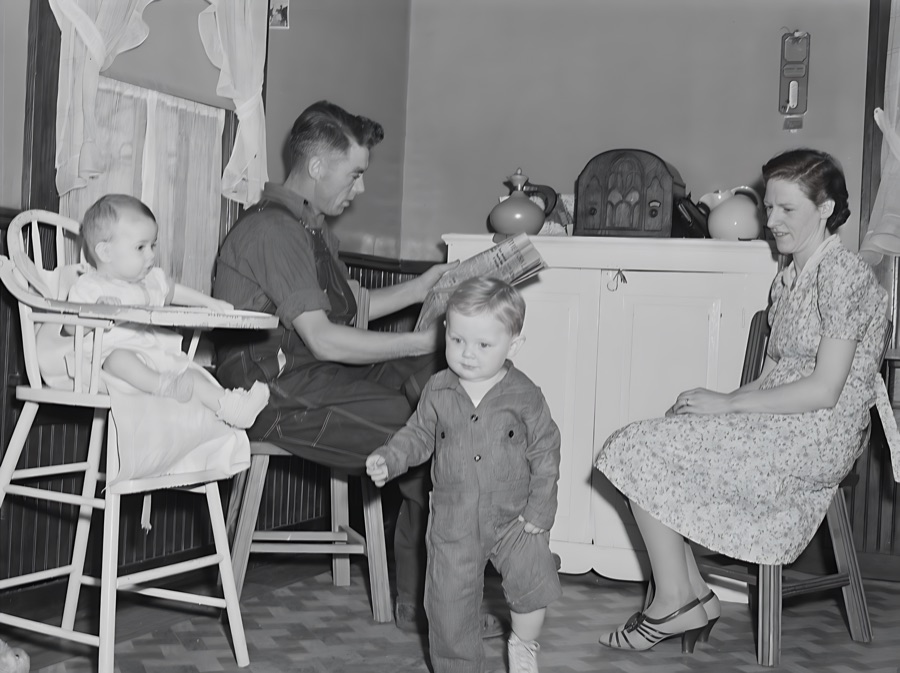 After
After Before
Start with a repair pass that cleans up age damage while keeping the original character of the print.
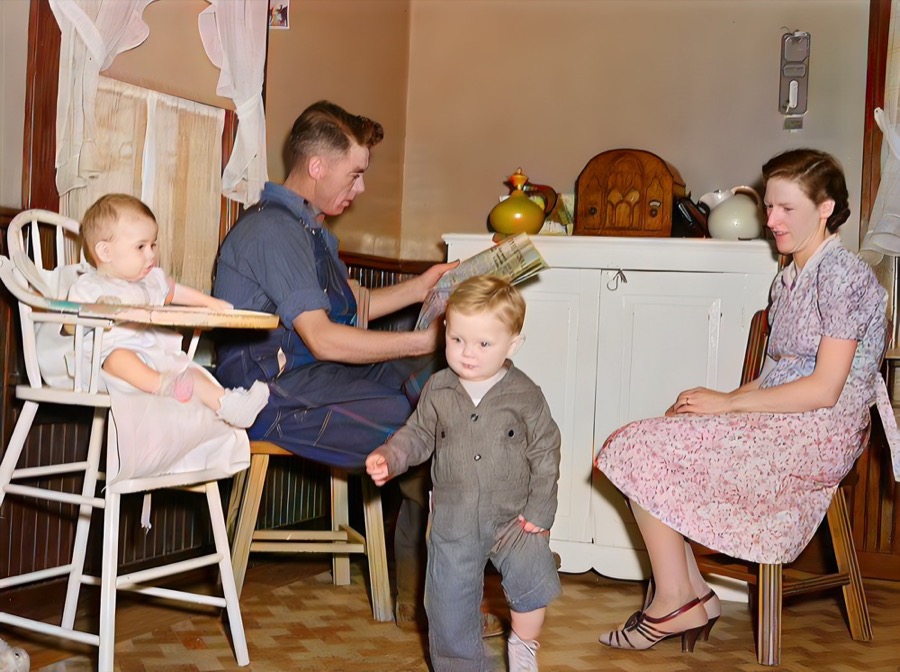 AfterBefore
For black-and-white photos, bring the scene to life with natural, era-appropriate color. Always optional — keep the monochrome version if it already feels right.
 After
After Before
If the repaired photo is still limited by capture quality or resolution, Nostalgia can suggest a final detail pass instead of pushing every image through sharpening by default.
A few more examples after the first proof moment. The full gallery stays separate when you want to browse every case.
AfterBeforeA 160-year-old ambrotype in its original case — faded to near-invisibility, then restored and colorized with startling clarity.
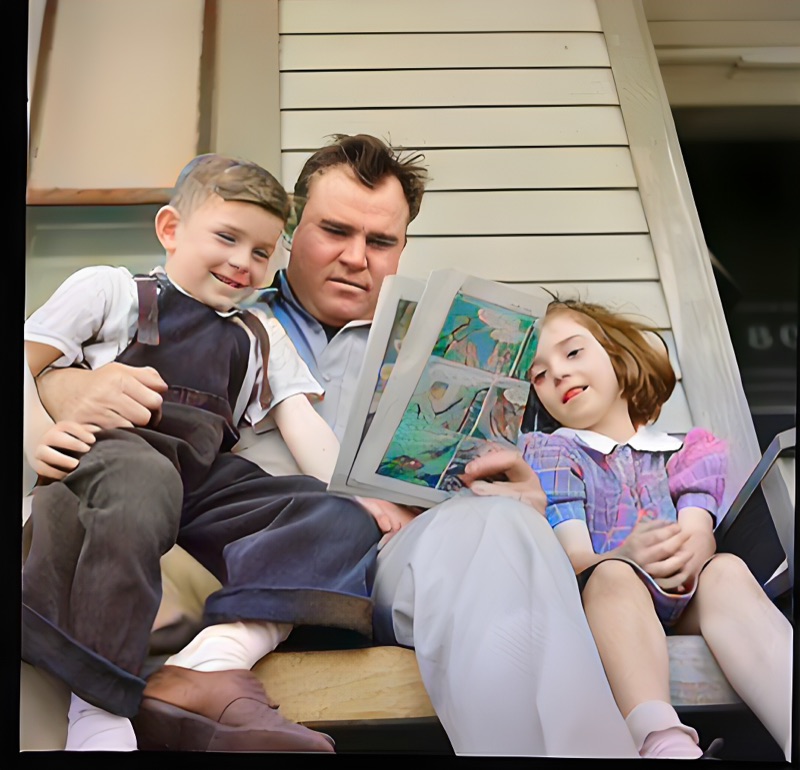 After
After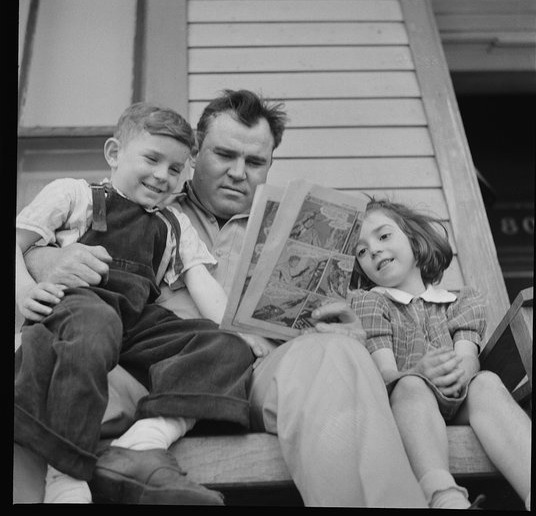 Before
A father reading to his kids on the porch. Dust and fading lifted so you can finally see their faces.
AfterBeforeFaded tones and lost shadow detail recovered — the mood of the original print preserved, then brought to vivid color.
AfterBeforeA fragile portrait with creasing and faded edges — repaired so the likeness is clear again.
| Nostalgia | Typical AI Tools | |
|---|---|---|
| Photo Insight before restoring | AI assesses damage, era, and quality first — ranked repair plan with blocked-step warnings | Runs immediately, you figure out what went wrong |
| Natural-looking results | Faces still look like who you remember | Aggressive AI that changes how people look |
| Guides you to better input | Suggests rescanning when it'll help more than another AI pass | Accepts anything without guidance |
| Private library | Albums, similar-photo cleanup, trash, Family Vaults, cross-device sync | Download-only — no organization |
| Works across devices | Scan on mobile, organize on web — library syncs everywhere | Single-platform only |
| Your photos stay private | Never shared, never sold, no AI training on your photos | Many train on uploads by default |
| Real-time processing updates | Live progress with ETA estimates, priority queue for paid tiers | Upload and wait — no progress visibility |
| Duplicate detection & merge | Finds visual duplicates, compares quality, merges metadata automatically | Manual cleanup or no detection |
| Conservation guidance | Warns about mold, water damage, fragile prints before processing | No physical handling advice |
The free tier includes 10 photo restores per month, 5 AI captions per day, and a private library for the results you want to keep.
“I started building Nostalgia after losing my father. Going through old family photos, I was struck by how many were already fading, scratched, or losing the detail that made them matter. Every design decision starts from the same question I asked with that first photo: does this still feel like the person I remember?”
Straight answers about results, privacy, pricing, and what to expect.
Scratches, fading, blur, glare, lost detail, and missing color. Nostalgia generates a Photo Insight report first — assessing damage, era, and capture quality — then repairs damage, colorizes black-and-white prints, enhances detail, and offers follow-up tools like captions, animation, and background removal.
Most restorations complete in under 60 seconds. You’ll see real-time progress and an ETA estimate for each step. Colorize and animate jobs may take a few minutes depending on queue depth. Plus and Pro subscribers get priority queue placement for faster processing.
Yes. Your photos are processed automatically to deliver the restoration you request. We do not use uploaded photos or restored outputs to train AI models, and human review is limited to support or safety cases that you report. You can export or delete your data anytime.
The free tier includes 10 photo restores per month and 5 AI captions per day. Plus starts at $5.99/month and Pro at $11.99/month. See the pricing page for full details.
Need direct help with one important photo? Visit the Support page for a personal reply.
Nostalgia is live on the web today, with iPhone available through TestFlight and Android in closed testing. Upload a photo and see it restored in under 60 seconds.
Also available on iPhone and Android through early access — see how to join