Remove glare from scanned photos and glossy prints
Glossy prints under overhead light, photos behind glass frames, and reflective album sleeves all create glare that obscures the image. Nostalgia’s AI deglare tool reduces hot spots and recovers the detail underneath.
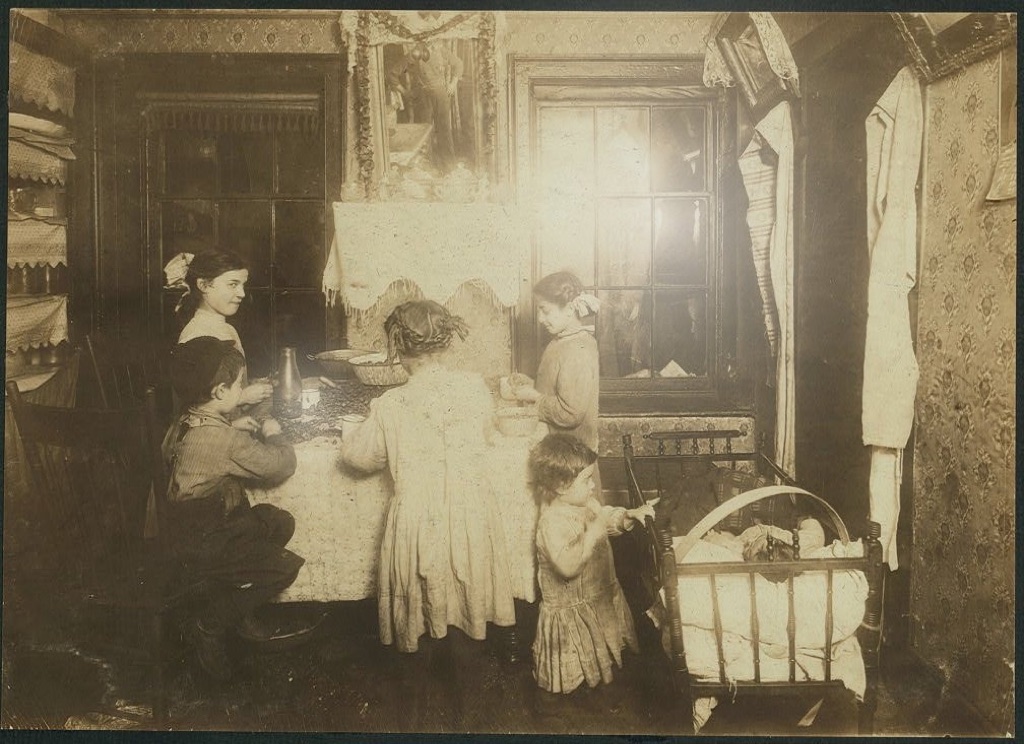 After
After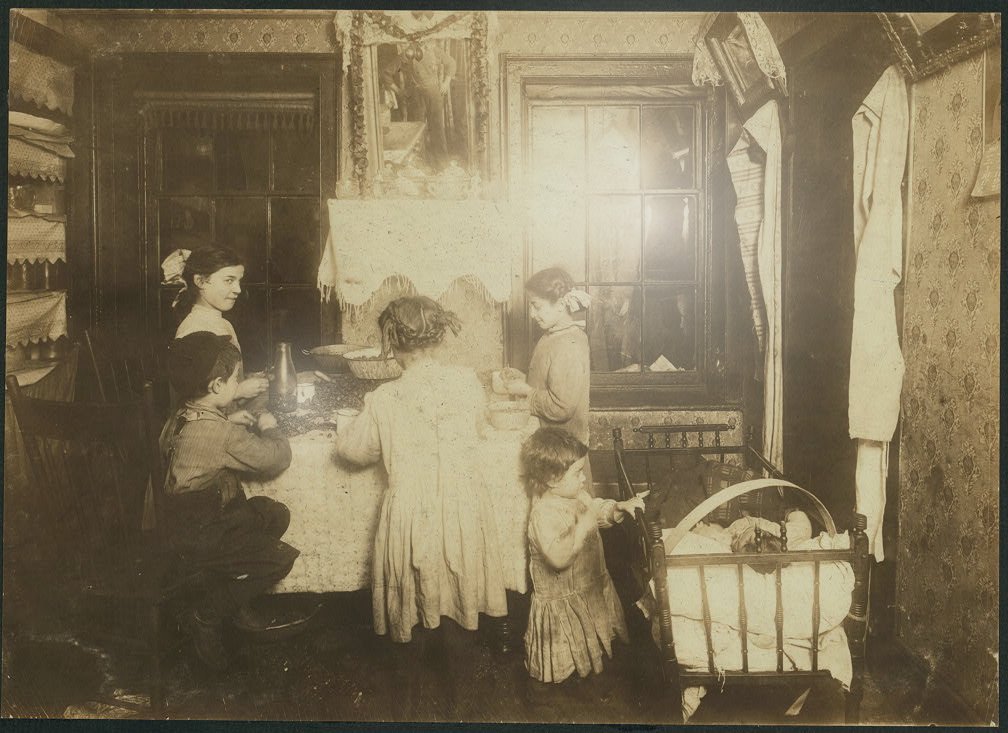 Before
Glare from overhead lighting reduced with AI deglare
Where glare comes from and how to handle it
Overhead lighting
The most common cause: photographing a glossy print under room lights. The AI can reduce mild to moderate hot spots where detail is still partially visible underneath.
Glass frames
Photos behind glass reflect the room back at the camera. If you cannot remove the photo from the frame, try photographing at an angle — then let deglare clean up the remainder.
Album plastic sleeves
Transparent album sleeves create diffuse glare across the whole image. Remove the photo from the sleeve before scanning for best results. If removal risks damage, scan through the sleeve and let deglare help.
When to rescan instead
For heavy glare that completely washes out an area, rescanning with indirect natural light or using Google PhotoScan (which captures multiple angles) is significantly more effective than AI correction.
Upload a photo with glare and see the result
Nostalgia diagnoses glare severity and recommends deglare when it will help. For heavy glare, it suggests rescanning instead of wasting credits.