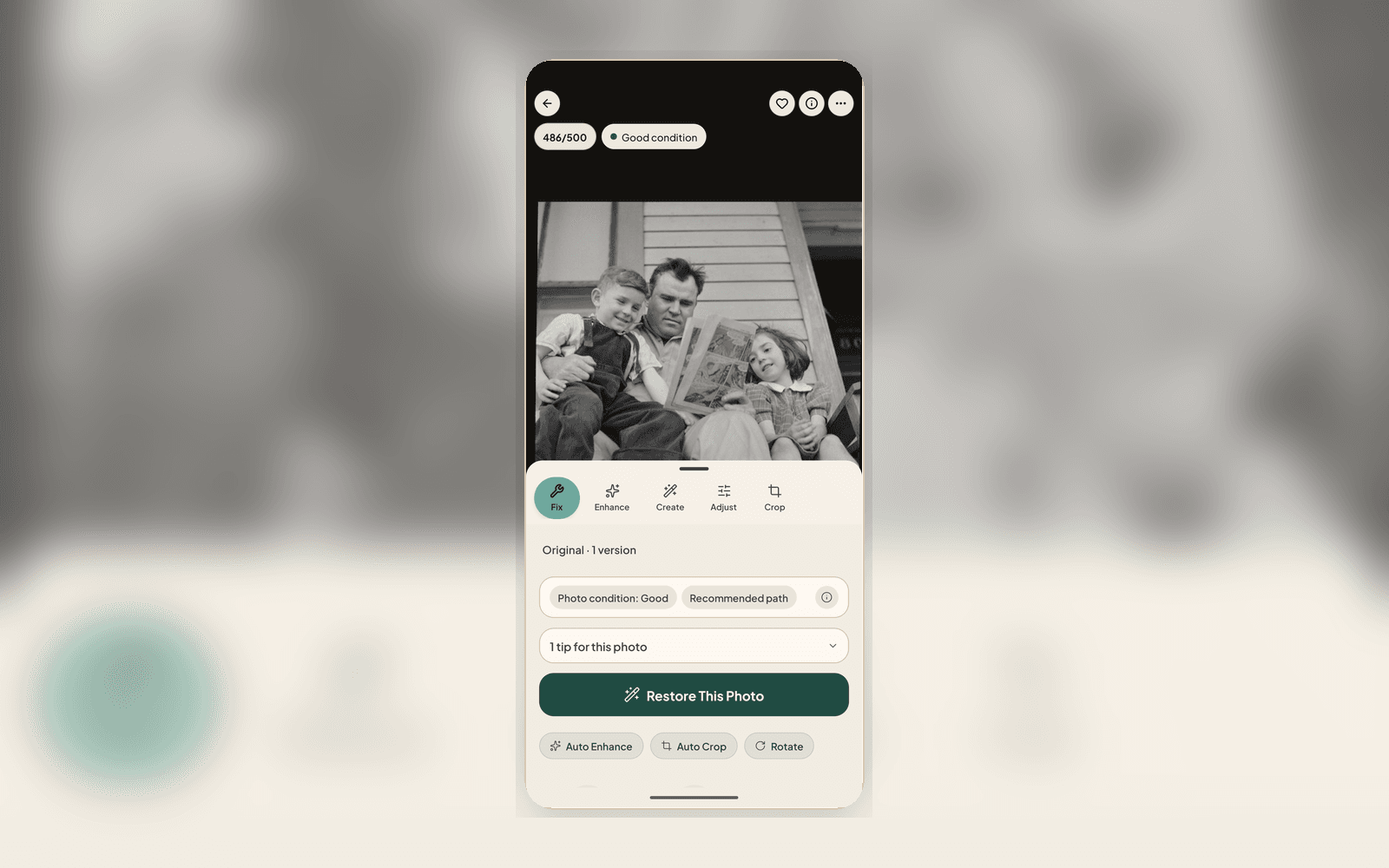
One screen, viewing and editing
The biggest change: viewing a photo and editing it are no longer separate modes. Open any photo in your Archive and the same screen handles both. You see the photo at full size, with the editing tools right there when you want them. No more jumping into a separate editor and losing your place.
The Photo Health banner
Every opened photo now shows a Photo Health banner at the top. At a glance: damage detected, condition grade, and the single safest next step the AI recommends. You can follow the recommendation, pick your own tool, or ignore the banner entirely. It's a hint, not a gate.
If the AI spots a visually similar photo elsewhere in your Archive, a companion banner appears too. Open Similar Photos, compare the candidates, and merge only if they are captures of the same physical photo; otherwise keep them separate.
Five tabs, organized by what you want to do
Tools are now grouped by intent rather than dumped into a single grid:
- Fix: the repair tools, namely restore, denoise, deblur, and deglare. Start here when the photo is damaged
- Enhance: improvements that sharpen what's already good, like enhance, face enhance, and colorize
- Create: stylistic and transformational options, like remove background, animate, and creative filters
- Adjust: manual controls for exposure, white balance, saturation, crop sliders
- Crop: framing, straightening, aspect ratio, and rotation in one place
AI runs in the background, so you can keep going
Tool runs are now fire-and-forget. Tap a tool, a processing pill appears in the corner, and you can navigate away, start another restore, or close the app entirely. When the result is ready, a toast brings you back. There's no blocking spinner, no "discard changes?" dialog, and no lost work if you switch tabs.
The Family plan and never-expire credit packs add more monthly restore room and larger batch workflows for inherited collections.
Batch AI straight from the grid
In the Archive grid, select multiple photos and the action bar now includes repair actions. Choose the relevant step and the restore set runs in the background with per-photo progress. Useful when you're working through an inherited collection and want to run the same repair across an entire album without opening each photo.
Small things worth knowing
- Versions are preserved: every tool run produces a new version, and you can scrub through them in a filmstrip without losing earlier results
- Duplicate detection runs automatically during enrichment, so "possible duplicate" badges show up without you having to trigger anything
- Continue across devices preserves your place: if you open a photo on mobile, the web app opens to the same photo
- The web and mobile editors now share the same five-tab structure, so muscle memory carries across
Feedback wanted
If you've been using the editor and have thoughts, particularly on the Photo Health banner accuracy or the new tool grouping, the support form in the You tab is the fastest way to get feedback in front of the team.
Related posts
 News
NewsPhoto Story Reveals: Share a Restored Photo the Right Way
Photo Story turns any restored photo into a private before-after reveal, whether square, story, or short video. Send a link, family watches the restoration unfold, no account needed.
GuideWhat Is the photo check? The AI Report That Checks Your Photo Before You Restore
Every upload gets a photo check report covering damage labels, era estimate, next best actions, and conservation guidance, all before you use a single restore.
TipsWhat AI Photo Restoration Can (and Cannot) Do in 2026
An honest look at what AI restoration is great at, where it struggles, and how to get the best results from your old photos.