Why we built Photo Story
Restoring a photo is a private moment. Sharing it, historically, has not been. The options are usually a file download, a social post, or a screenshot, none of which communicate the restoration itself, and most of which ask the recipient to squint at the before and after side by side.
Photo Story is a better answer. You pick the Chosen restoration in your Archive, choose a format, and Nostalgia generates a reveal, a private landing page where the Source sits next to the restoration result and animates in. You send a link. The person opening it sees the transformation the way you saw it the first time.
Three formats, one link
Every reveal ships in three layouts so you don't have to guess which one fits where:
- Square: best for direct messages and chat apps. The before/after sits in a clean 1:1 card that renders well as a link preview
- Story: vertical 9:16, sized for Instagram Stories, WhatsApp status, and vertical feeds
- Short video: a short MP4 that animates the Source into the restoration result. Good for posting where a link wouldn't catch attention
Pick the result to share from Versions
Most restored photos go through a few passes - the default restore, a colorized follow-up, maybe a face enhancement. Photo Story opens with a filmstrip of every version you've produced so you can pick the one to share. The decision is low-stakes: if you change your mind later, you can regenerate the reveal from a different version.
Private by default
Reveal pages are not indexed, not discoverable, and not listed anywhere. Each one is a random URL that only the people you send it to can find. You can add an optional passcode and an expiration date for sensitive photos, like a portrait of a living relative, or a restored wedding photo you want out of circulation after the anniversary.
Recipients don't need a Nostalgia account to view a reveal. They click the link, watch the restoration animate in, and can download the result if you allow it.
How it fits the rest of the workflow
Photo Story sits at the end of the restoration flow, not the middle. You scan, restore, compare variants, and decide which one to keep. Then if the photo is meaningful enough to send, you open Photo Story. For collection-scale work, you'll still use Family Vaults for long-term browsing and downloading. Photo Story is for the single-moment sends: a birthday, an anniversary, the day you finally finished restoring your grandmother's wedding photo.
Try it
Photo Story is available on every plan, including free. Restore any photo, open it in your Archive, and look for the Photo Story button. The feature page at /features/exhibits has a short video of what the reveal looks like on the receiving end.
Related posts
 News
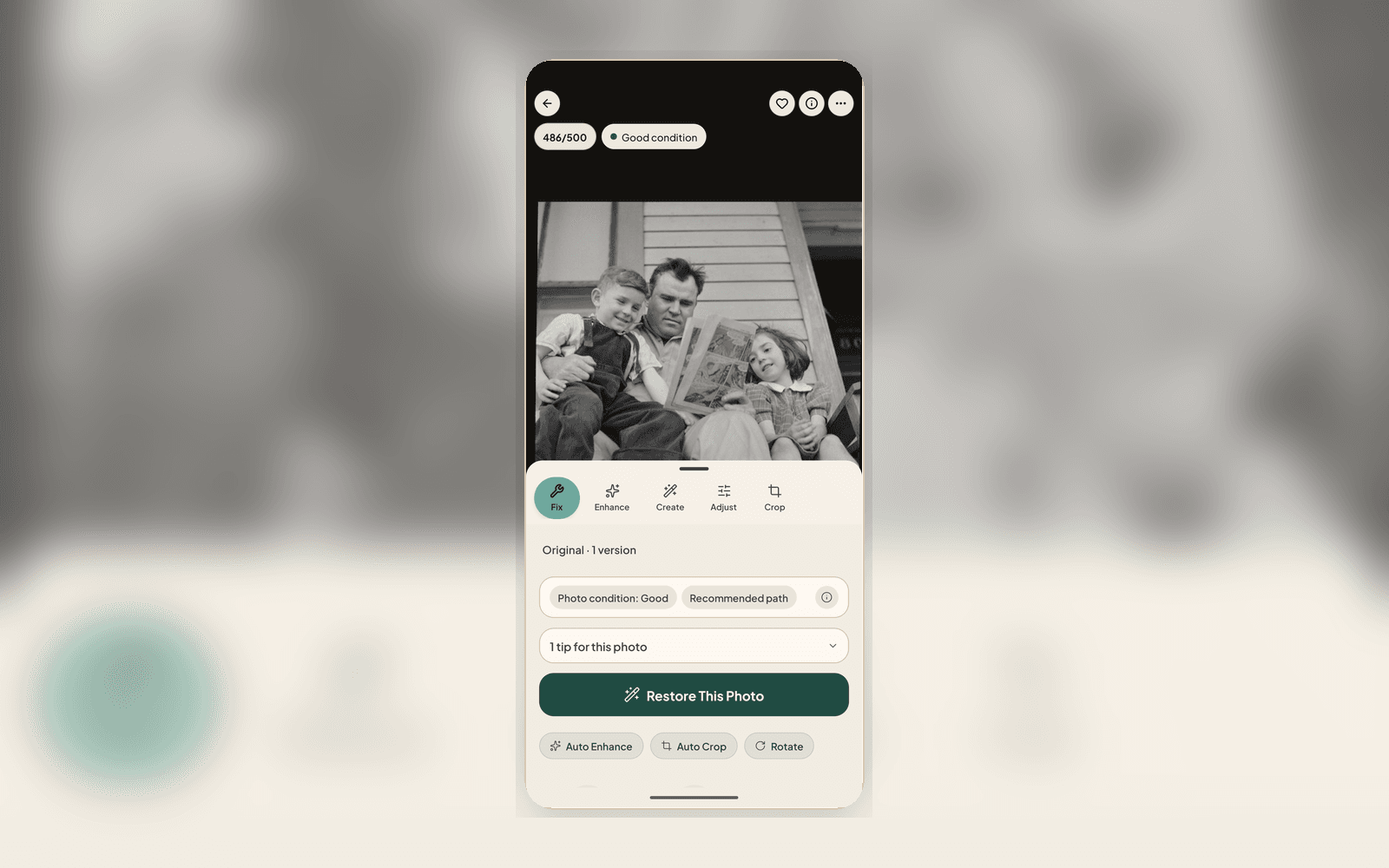
NewsWhat's New in the Nostalgia Editor (April 2026)
A quick tour of the refreshed Nostalgia editor: one unified screen for viewing and editing, a Photo Health banner, five tool tabs (Fix, Enhance, Create, Adjust, Crop), and background processing that doesn't block you.
 News
NewsMemorial Vaults: A Way to Share a Relative's Photos That Survives Them
When a relative dies, their photos usually get scattered, to a Dropbox link, a Facebook album, or nowhere. Memorial vaults are a different approach: a private, auto-populated tribute the family can hold onto.