Why check before you restore?
Most photo restoration tools work the same way: you upload a photo, the AI does something to it, and you hope for the best. If the result is bad, you've already used a restore. If the source scan was the real problem, you wasted time on the wrong step.
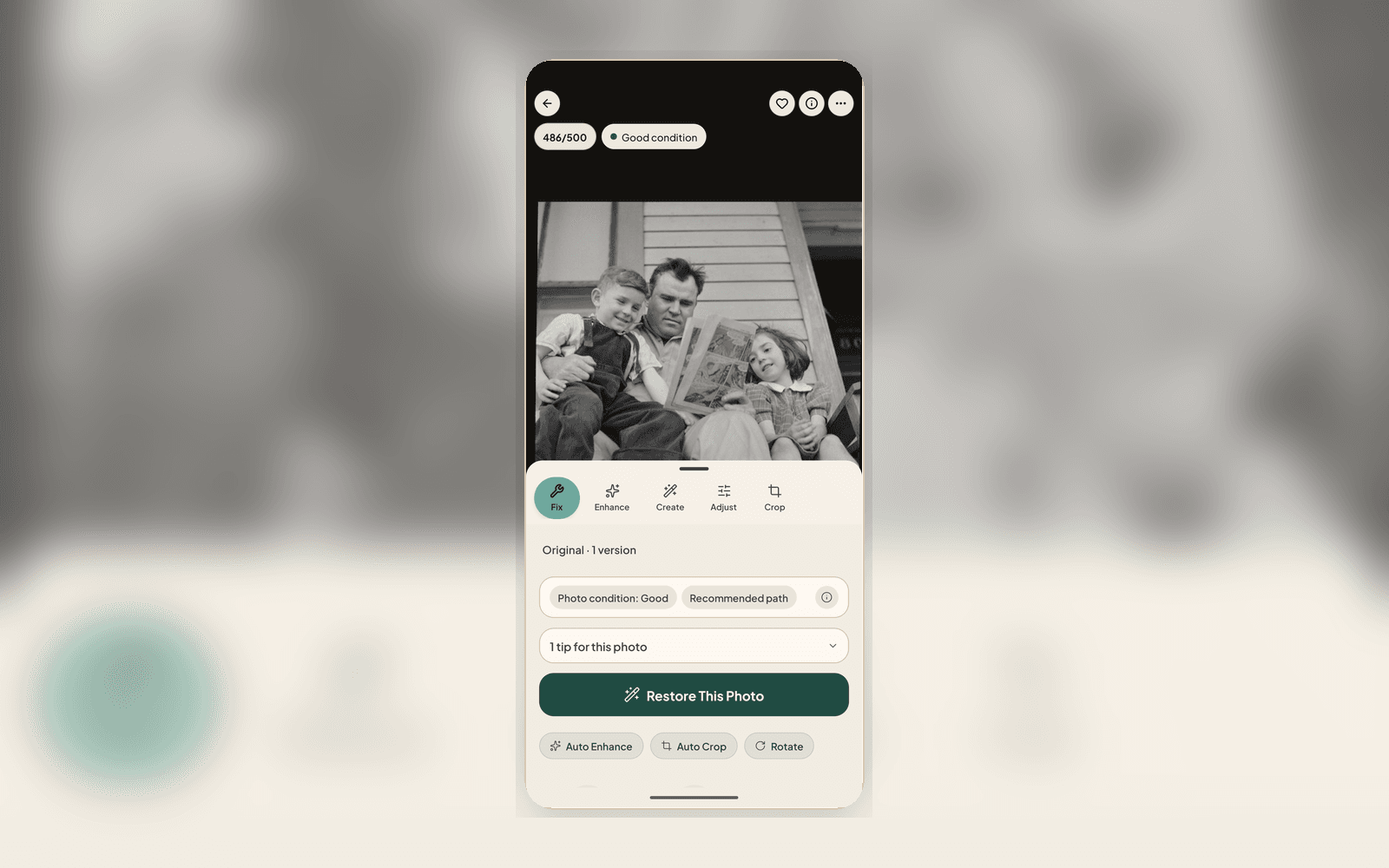
The photo check changes that sequence. Before any restoration begins, before you use a single restore, Nostalgia's AI analyzes your photo and tells you exactly what it's working with. Think of it as a pre-flight check for your photo: what's damaged, how badly, what tools will help, and whether a better scan would matter more than another AI pass.
What the report includes
Every photo check report covers the same ground so you can review the photo before repair:
- Damage labels: specific tags for each type of degradation detected, such as fading, scratches, tears, creases, stains, water damage, mold, glare, blur, color shift, and noise
- Era estimate: an approximate decade based on printing technology, paper type, clothing, and visual cues. This powers smarter search and album suggestions across your library
- Capture quality grade: rates your scan or phone capture and tells you when a better source would improve results more than additional AI processing
- Next best action recommendations showing which manual fixes, safe tools, optional tools, and blocked tools apply to this specific photo, with a clear reason for each
- Conservation guidance: flags photos that may need careful physical handling before aggressive AI processing, like mold, active water damage, or fragile prints that could be damaged by scanning
The next best actions
This is the most useful part of the report. Instead of guessing which tool to use, the repair plan tells you the recommended order based on what the AI detected.
Safe steps are the ones the AI is confident will improve the photo without risk. These are your starting point. Optional steps might help but depend on your preference: colorization, for example, is optional because some people prefer to keep black-and-white photos as they are. Blocked steps are tools the AI recommends against for this particular photo, with a reason why, like running face enhancement on a photo where no faces were detected, or applying deglare when no glare was found.
Following the plan doesn't lock you in. You can skip steps, change the order, or try tools the plan marked as optional. The plan is guidance, not a gate.
Conservation guidance
Some photos need physical attention before digital processing. If the photo check detects signs of mold, active moisture, severe fragility, or damage that could worsen with handling, it flags the photo with conservation guidance.
This might say something like: "This photo shows signs of mold growth. Wear gloves when handling. Consider separating from other photos in storage. Air dry before scanning if recently exposed to moisture." The goal is to protect your original, not just produce a digital result.
How the photo check helps your library
The photo check isn't just for the moment of restoration. The damage labels, era estimates, and quality grades become part of your library's metadata. You can filter your entire collection by era, damage type, or quality grade, which is useful when you're working through a large archive and want to prioritize the photos that need attention most.
Album suggestions also use the photo check data. If the AI detects a cluster of photos from the same era with similar damage patterns, it may suggest grouping them into an album.
What the photo check costs
Nothing. The photo check runs automatically on every upload, on every plan, including free. The analysis itself never counts against your monthly restore quota. Only the restoration tools you choose to apply do. This means you can upload a photo, read the report, and decide not to restore it without using anything.