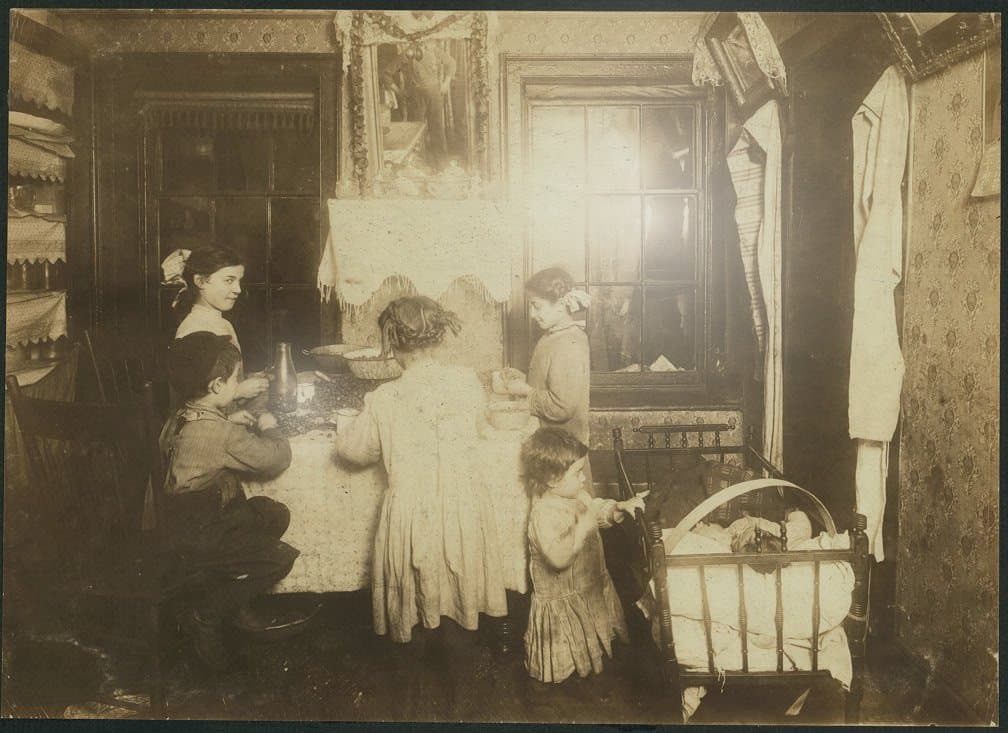
A good scan is most of a good restoration
Most inherited prints get digitized with a phone, not a flatbed scanner. That is the right call for a shoebox of hundreds: a phone capture takes seconds, the scanner travels to wherever the photos live, and the results are good enough for almost every family-archive purpose, if the capture itself is clean. The standing method is the scanning guide and the inherited-photos playbook; this note is the capture-time argument, not a second system.
That last clause is where phone scanning has historically fallen down. AI restoration is good at repairing damage that is in the print: fading, scratches, tears. It cannot repair damage that is in the capture: a glare hotspot where a face used to be, a print photographed at an angle, a soft shot from a shaky hand. The fix has to happen at capture time, which is exactly where the Nostalgia scanner does its work.
The four ways phone scans go wrong
Watch anyone scan a stack of prints with a bare camera app and the same four failures show up:
- Glare: glossy paper reflects whatever light is in the room, washing out part of the image, often a face
- Skew: the phone is never perfectly parallel to the print, so the photo comes in tilted and keystoned
- Blur: tapping the shutter shakes the phone at the worst possible moment, and a slightly soft scan loses detail no restore can recover
- Album pages: a page of four photos captured as one image, which then gets cropped badly or never separated at all
A guide frame that coaches the capture
Open the scanner and a live guide frame appears around the detected print, with plain coaching while you line up: move closer, hold steady, level out. You are not guessing whether the shot is good. The scanner tells you before it is taken.
Then it removes the biggest single source of blur: your thumb. When the phone is steady and the print is lined up inside the frame, the scanner captures automatically. No tap, no shake, no third attempt.
Glare: a burst instead of a battle
The traditional advice for glossy prints is to chase the reflection around the room: tilt the print, move the lamp, try again near a window. It works, eventually, sometimes.
The scanner takes a different approach. For glossy prints it captures a short multi-shot burst and fuses the frames into one scan. The reflections sit in a slightly different place in each frame, so the fused result keeps the image detail and drops the glare. You hold the phone; the scanner does the chasing.
Skew: straightened automatically
Perspective and rotation are corrected automatically after capture, so a print photographed at a slight angle still comes in straight, with square corners. The correction is deliberately conservative: a capture that is already straight is never re-warped, and once accepted, the capture remains a separate Source Version beside the cleaned-up scan.
Album pages: scan once, split after
Album pages used to be the slowest part of a scanning session: either you photographed each print separately through the page protector, or you captured the whole page and lived with one merged image.
Now you can capture the full page, or lay several loose prints on the table and capture them together, and the app detects the separate photos and offers to split them into individual scans. One capture becomes four photos, each with its own crop, its own restoration path, and its own place in the archive.
What gets saved
The scan that enters your archive is saved as an archival-neutral master: high JPEG quality, no baked-in filters, no tone effects applied on top of the print. What the print looks like is what the master records.
That neutrality matters more than it sounds. Every restoration starts from the Current Source, so a Source with a filter baked in would carry that filter into every repair. A neutral, full-detail Source lets restorations use everything the accepted capture actually saw while each Source Version remains separate.
The honest tips that still matter
The scanner removes the fiddly parts, but physics still gets a vote. A few habits make every capture better:
- Clean the scanning surface first. Avoid rubbing fragile, flaking or damaged prints; capture them safely in place or seek specialist handling
- Use indirect light: near a window on a cloudy day beats every overhead light in the house. Never use flash on a glossy print
- Work on a dark, matte surface: a dark tablecloth helps edge detection find the print's true borders
- If a print is framed, take it out of the frame only if it comes out easily. Never force a print that is stuck to glass. Scan it through the glass and let the glare burst help
- Capture the back of any print with handwriting. Names and dates on the reverse are often the only surviving identification
When a flatbed is still the right call
A flatbed at 600 DPI is a practical starting point for loose prints with small details worth preserving. Scan a few prints together in the software you already have, then import the full image into Scan Station on web. Review crops, save to an album, and continue that album next time. Our scanning guide covers settings and handling; the inherited-photos playbook helps organize the session.
Use the phone or flatbed workflow that helps you make steady progress. A print can be rescanned later when a better capture is worthwhile. Review the versions and choose the current Source yourself.
Related posts
 Guide
GuideThe Family Historian's Guide to AI Photo Restoration
If you're building a family archive alongside your tree on Ancestry or MyHeritage, here's how to use AI photo restoration without compromising archival integrity.
TipsWhat AI Photo Restoration Can (and Cannot) Do in 2026
An honest look at what AI restoration is great at, where it struggles, and how to get the best results from your old photos.
 News
NewsA fresh look, and the features families love most: People, Memories, and Colorize
Our biggest update yet brings a warmer redesign across the whole app and surfaces the features families love most: find your people by face, relive “on this day” memories, and add color to black-and-white prints.