Why family historians need a different kind of restoration tool
Inherited photo collections almost always arrive damaged: faded, scratched, torn, or printed on paper that's browned for a century. Your tree software won't help with any of that. And general AI photo tools, built for selfies and social media, will cheerfully smooth your great-grandmother's face into someone who isn't quite her.
Family historians need a restoration tool with a different instinct: repair what's broken, preserve what's real, and keep the likeness that lets you recognize the person on your tree. The rest of this guide walks through a workflow that's produced good results for people doing serious archival work, and links to /for-family-historians if you want the shorter overview.
What makes Nostalgia different for genealogy work
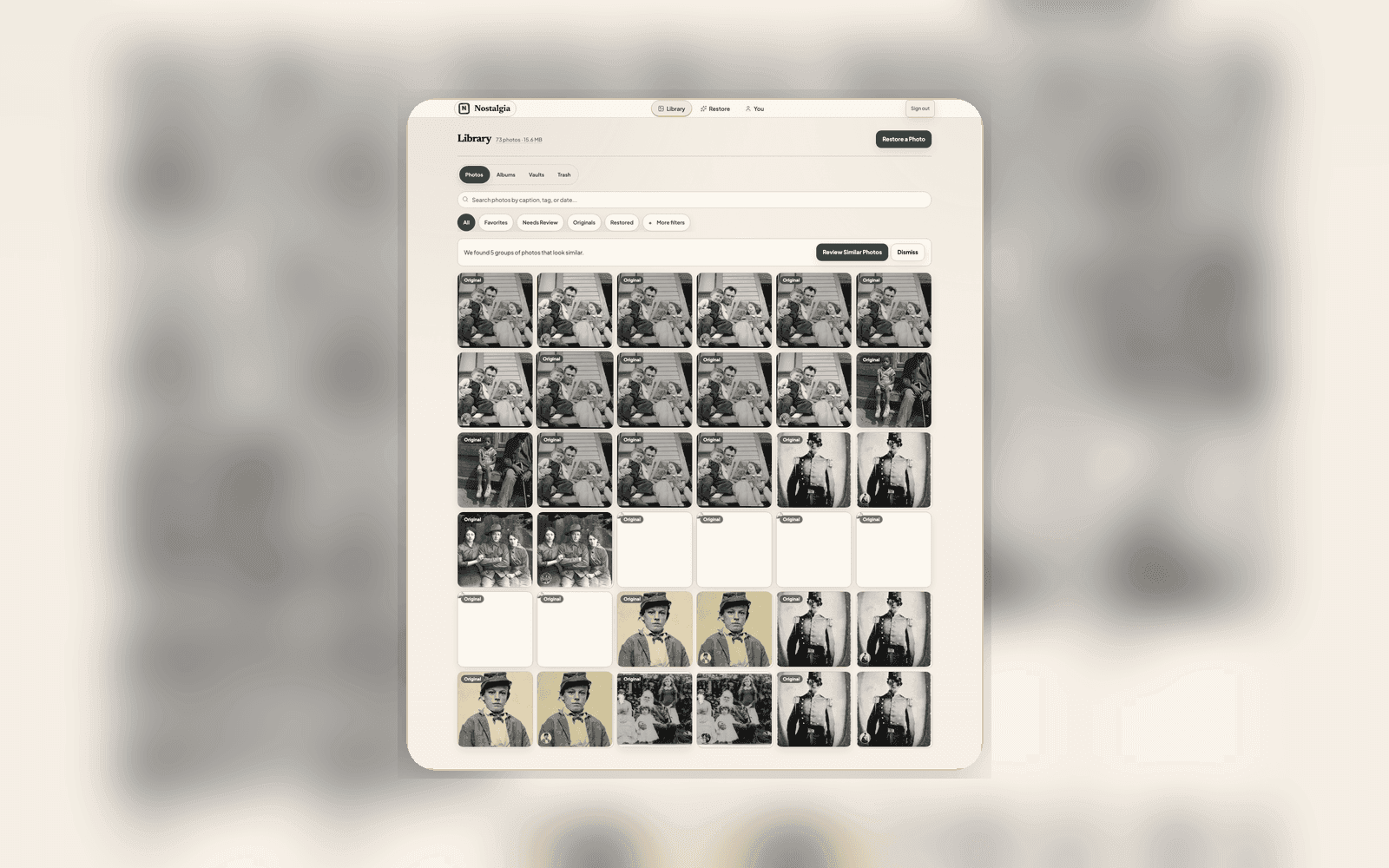
Nostalgia is a strong fit for family archivists. Every photo that goes through it starts with the photo check, an automatic read of damage type, estimated era, capture quality, face condition, and next best actions. Before you use a restore, you know what the tool can and can't do with your image.
- Privacy-first: your photos are not used to train AI unless you separately opt in, and you keep full ownership of Source versions and restoration results
- Restore-first workflow: damage is repaired before any stylistic changes, so the archival integrity of the photo is preserved
- Optional colorization: add natural color to black-and-white photos when it helps tell the story, keep the original tonality when it doesn't
- Family Vaults: private, invite-only spaces for sharing restored photos with cousins, aunts, and siblings without using social media
- Cross-device library: scan prints on your phone, do the careful review and organizing on a larger screen
- AI-generated captions, era estimates, and tags, useful when you're tagging hundreds of photos by person and decade
A practical workflow for an inherited photo collection
Most family historians come to photo restoration after inheriting a parent's or grandparent's collection, sometimes hundreds of prints in shoeboxes and old albums. Here's a workflow that's worked well for people doing serious archival work.
Step 1: Triage before you digitize
Sort physical prints into three stacks: priority people (ancestors on your direct line or central to branches you're researching), priority events (weddings, immigration photos, portraits dated before 1950), and everything else. Scan the first two stacks first. You can always come back for the rest.
If any prints show signs of silvering, mold, sticking together, or flaking emulsion, photograph them where they are before trying to separate them. The photo check will warn you when it detects physical damage that needs careful handling, but the safest rule is: if it looks fragile, get a conservator's opinion before doing anything.
Step 2: Scan at archival quality
For most loose prints, start with 600 DPI in colour and check the captured detail. Import whole-bed PNG or TIFF files into web Scan Station, review the separate photos, and save to a named album. Whole-bed imports must stay under 50 megapixels and 80 MB. The mobile scanner offers guided capture and album-page split review when a phone fits the task better.
One tip specific to genealogy: when you scan, capture the back of every photo too, even if it looks blank. Handwritten names, dates, and notes on the reverse are often the only surviving identification. Keep front and back files with matching names, then copy the handwriting into notes. Pairing is manual; do not assume that a back scan is linked automatically.
Step 3: Upload in batches and let the photo check guide you
Upload 20–30 photos at a time. Each one gets its own photo check report with one clear next best action. For most photos, the default repair pass is the right starting point. Run it, compare the before and after using the slider, and decide whether to accept, add a follow-up step (colorize, face enhance, deblur), or rescan.
For ancestor portraits (the kind where the face is the subject and you want a clean, identifiable likeness), the photo check report usually recommends restore first and face enhancement second if needed. Resist the urge to over-process. A slightly soft portrait that still looks like your ancestor is always better than a crisp portrait of someone who isn't quite them.
Step 4: Caption and tag while the photos are in front of you
The biggest archival mistake is restoring photos faster than you can identify them. Nostalgia can draft captions, era estimates, and searchable tags for every upload, but the tool doesn't know your family. Take five minutes after each batch to correct the assisted caption with real names, tag people, and write down what you remember being told about the photo when it was given to you.
These edits become part of the photo's permanent metadata. Ten years from now, when you come back to the archive or hand it off to the next generation, those captions are what turn a collection of pictures into a family history.
Step 5: Share with family through Family Vaults
Once photos are restored and tagged, the natural next step is sharing them with relatives who care. Family Vaults are private, invite-only spaces inside Nostalgia. You invite cousins, aunts, and siblings by email, assign roles (owner, editor, viewer), and the vault becomes a shared memory wall the family can browse and download from, without any of it being public, and without anyone needing a social media account.
A practical way to structure this is one vault per family branch. The maternal side gets one, the paternal side another, and in-law branches get their own. It mirrors how many family trees are organized and keeps scope manageable.
A note on colorization for ancestor photos
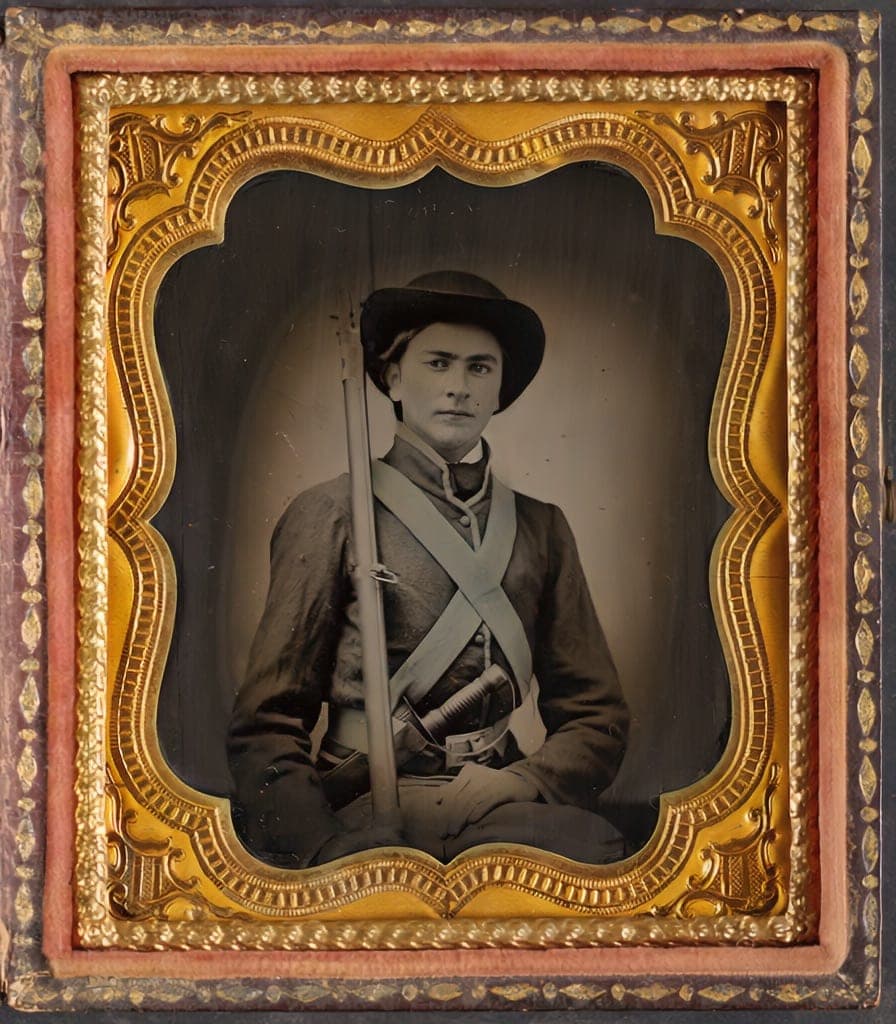
Colorization of black-and-white ancestor photos is one of the most emotionally powerful things AI can do. The first time you see your great-grandfather's uniform in natural wool brown and brass, or your grandmother's wedding bouquet in period-accurate cream and pale pink, it's a different kind of recognition than a black-and-white print can produce.
That said: AI colorization is an interpretation, not a recovery of ground truth. The colors are plausible for the era and scene but aren't the exact colors of the historical moment. Many family historians use the accepted black-and-white Source and a chosen faithful restoration as references, with the colorized result as a companion. Nostalgia's Archive keeps these as separate Versions.
Family tree integration for signed-in users
Nostalgia now has Person records, face-cluster review, and read-only tree import for signed-in web users. The goal is simple: keep your formal tree in FamilyEcho, Ancestry, MyHeritage, RootsMagic, Family Tree Maker, Gramps, or FamilySearch, then use Nostalgia to connect that family structure to the photos themselves.
The next layer is stronger auto-linking and person-centered timelines, so a family branch can become a practical archive view instead of a loose album.
Pricing for a long archive
The free tier (30 never-expire welcome restores to start) is enough to trial the tool on your own photos and judge whether the likeness holds up. The Family plan ($7.99/mo, ${FAMILY_MONTHLY_PHOTO_OPS} restores shared across the household) is sized for steady monthly restoration, and never-expire credit packs let you buy a bigger batch when you want to push through a collection. Archive work tends to breathe across many months anyway.
Annual plans carry a meaningful discount and match the pace of the work. If you already know you're in it for the long haul, they are usually the right call over monthly.
Read the archive-first overview
If you want the short version of everything on this page (how Nostalgia fits alongside Ancestry, MyHeritage, and FamilySearch, what we do about likeness preservation, and what's on the near-term roadmap), the dedicated landing for family archivists lives at /for-family-historians.