Face Enhancement
Use face enhancement only when faces are too soft to recognize clearly after the baseline repair. The goal is a more readable likeness, not a different person.
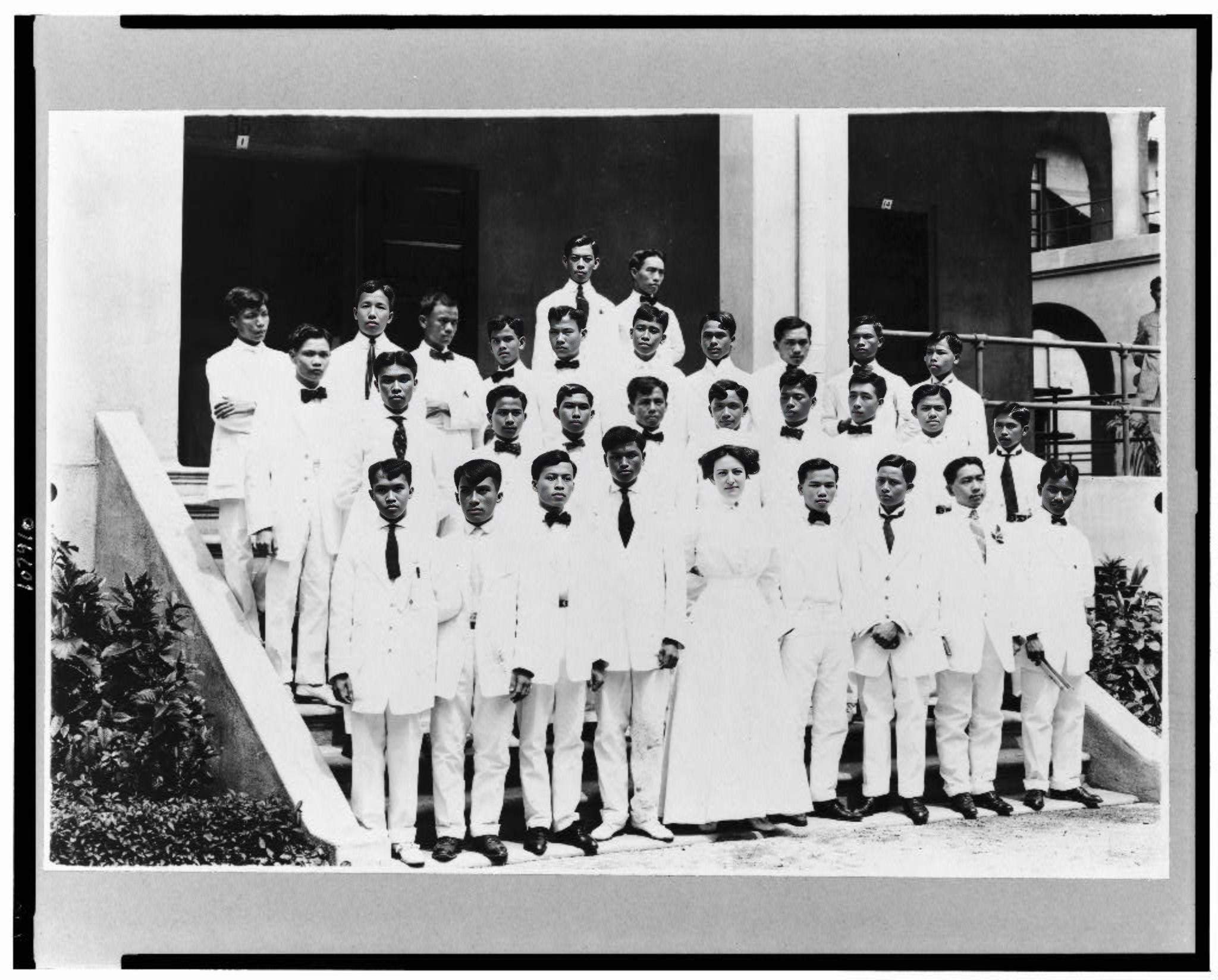 After
After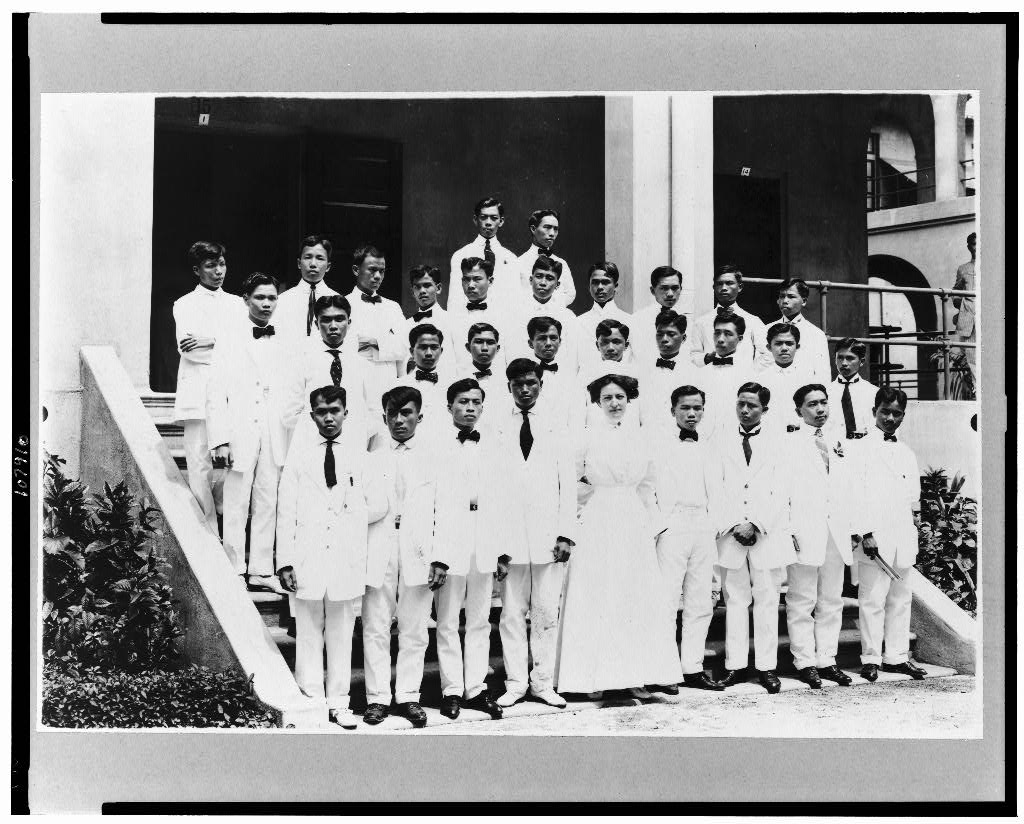 Before
Drag to compare the original with the face-enhanced version
Check, enhance, compare
Check the faces
Photo Insight detects whether faces are present and whether the baseline repair leaves them too soft to identify.
Enhance only if needed
The portrait pass sharpens readable detail after repair while preserving the original for side-by-side review.
Compare the likeness
Review faces carefully before saving the restored version. If a result changes the person, keep the earlier version.
When face enhancement helps most
Blurry Portraits
Old portraits where faces have lost sharpness from age, poor scanning, or low-resolution prints benefit most.
Group Photos
In group photos, smaller faces often lose detail. Face enhancement rebuilds each face individually.
Recommended When Needed
The restore workflow recommends face enhancement when portrait detail needs extra help, but the original and baseline restore stay available.
Works with Restore
Face enhancement complements general restoration. The restore flow runs scene restore first, then applies portrait repair where needed.
This step belongs to the family archive
After the tool runs, the Original, Restored version, Photo Insight, captions, people, notes, and private shares stay together in Archive. The result is not a loose download; it becomes one more finished record in the archive.
Make a soft face easier to recognize
Upload a portrait or group photo, run the baseline repair first, and use face enhancement only if the likeness still needs help.