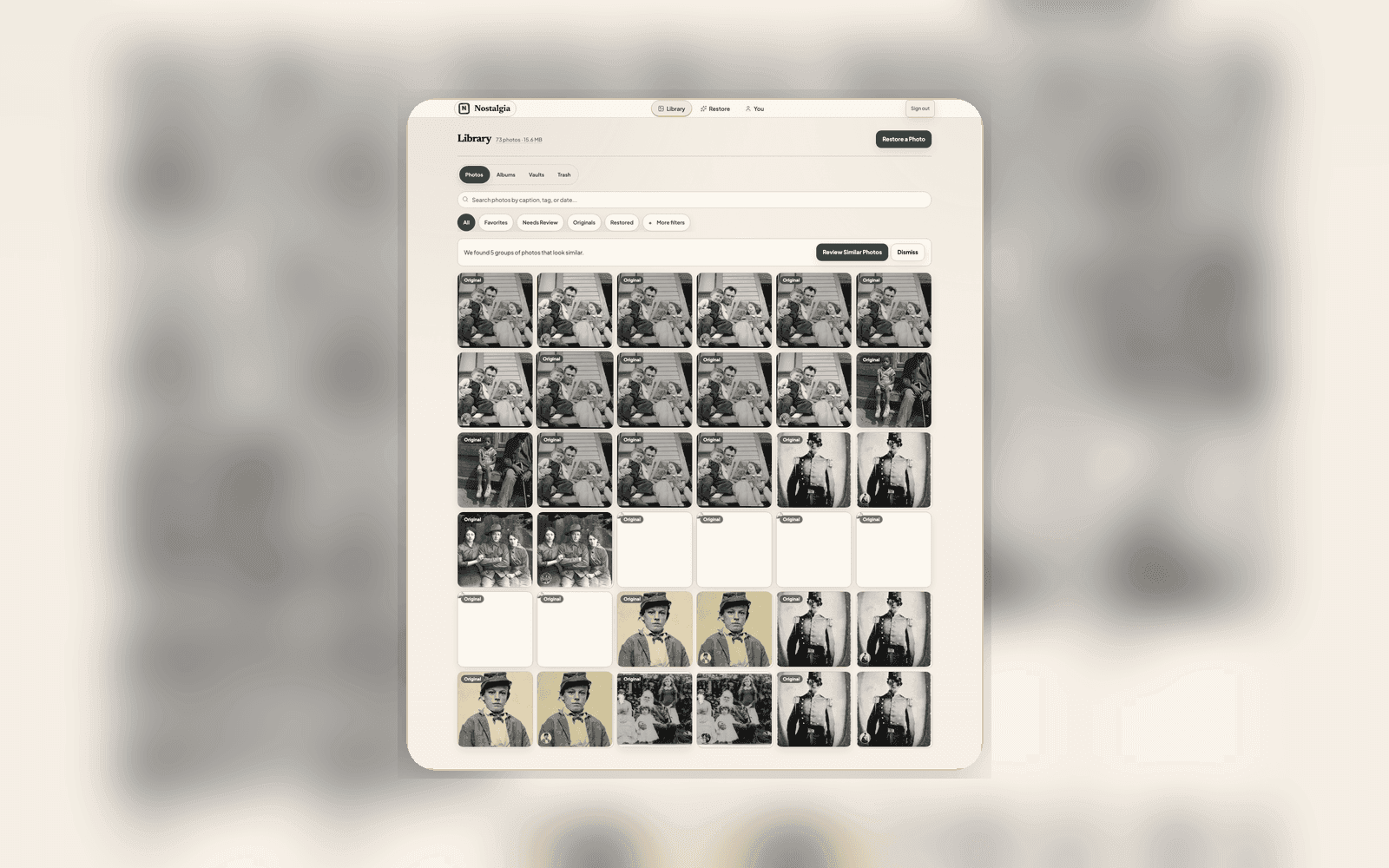
Duplicates are inevitable in family archives
If you've been digitizing old family photos over time (scanning a few here, importing some there, capturing with your phone at a family gathering), you've probably ended up with duplicates. Same photo scanned twice at different resolutions. A phone capture and a flatbed scan of the same print. A true duplicate sitting beside a better scan.
Manually hunting through hundreds of photos to find candidates is tedious. Nostalgia does the detection work, but cleanup stays review-first: you confirm that the captures show the same physical photo and choose which Photo record should represent the group.
How duplicate detection works
When you upload a photo, Nostalgia generates a perceptual hash (pHash), a compact fingerprint based on what the image looks like, not its file properties. This helps surface possible duplicates even when file sizes, resolutions, or formats differ. Cropping, damage, and different moments can still need your judgment.
The system clusters duplicates into exact duplicates and same-print recaptures. Restored outputs and Source scans stay linked as Versions of the same photo, not as duplicate photos to merge.
Finding duplicates in your Archive
There are three ways Similar Photos appear:
- Restore Progress & Review: the Similar Photos lane shows detected review groups across your collection. Each group shows the candidates side by side with a recommended representative Photo
- Manual Mark similar: select 2+ photos in Archive, tap Similar, and Nostalgia creates a Restore review group instead of merging immediately
- Scan review: when importing or scanning a batch of photos, likely recaptures can be flagged before you start restoring
Review, confirm the same physical photo, then merge
Nostalgia recommends which Photo record should represent the group and shows why. You can accept that recommendation or choose a different Photo before confirming.
After you confirm a merge, Nostalgia transfers tags, album memberships, favorites, notes, shares, vault links, Versions, and provenance onto the selected Photo. Absorbed Photo records remain represented by their preserved Versions, and Undo merge can restore the separate records while their versions are still retained.
Choose the main scan and restoration, then reclaim unused space
In Versions, choose the current Source and your preferred restoration independently. A better rescan does not have to replace a restoration you already like.
Free up space on web shows the unused versions eligible for permanent deletion and the ones that must stay. The current Source, chosen restoration, required ancestry, shared uses, and active processing inputs are protected. Hiding versions does not reclaim storage. Permanent deletion cannot be undone and ends Undo for an affected merge; keep your own backup before confirming.
Tips for keeping duplicates under control
- Open Similar Photos in Restore Progress & Review after any large import, especially if you're bringing in photos from multiple sources like Google Photos, a scanner, and phone captures
- Use Mark similar when you notice two photos that belong in a review group. The grid action creates the group; it does not merge immediately
- Restoration results and Source captures of an existing Photo belong under Versions, not in Similar Photos
- Before permanently deleting versions, Undo merge in Versions can restore separate Photo records and their prior archive relationships
Related posts
 Guide
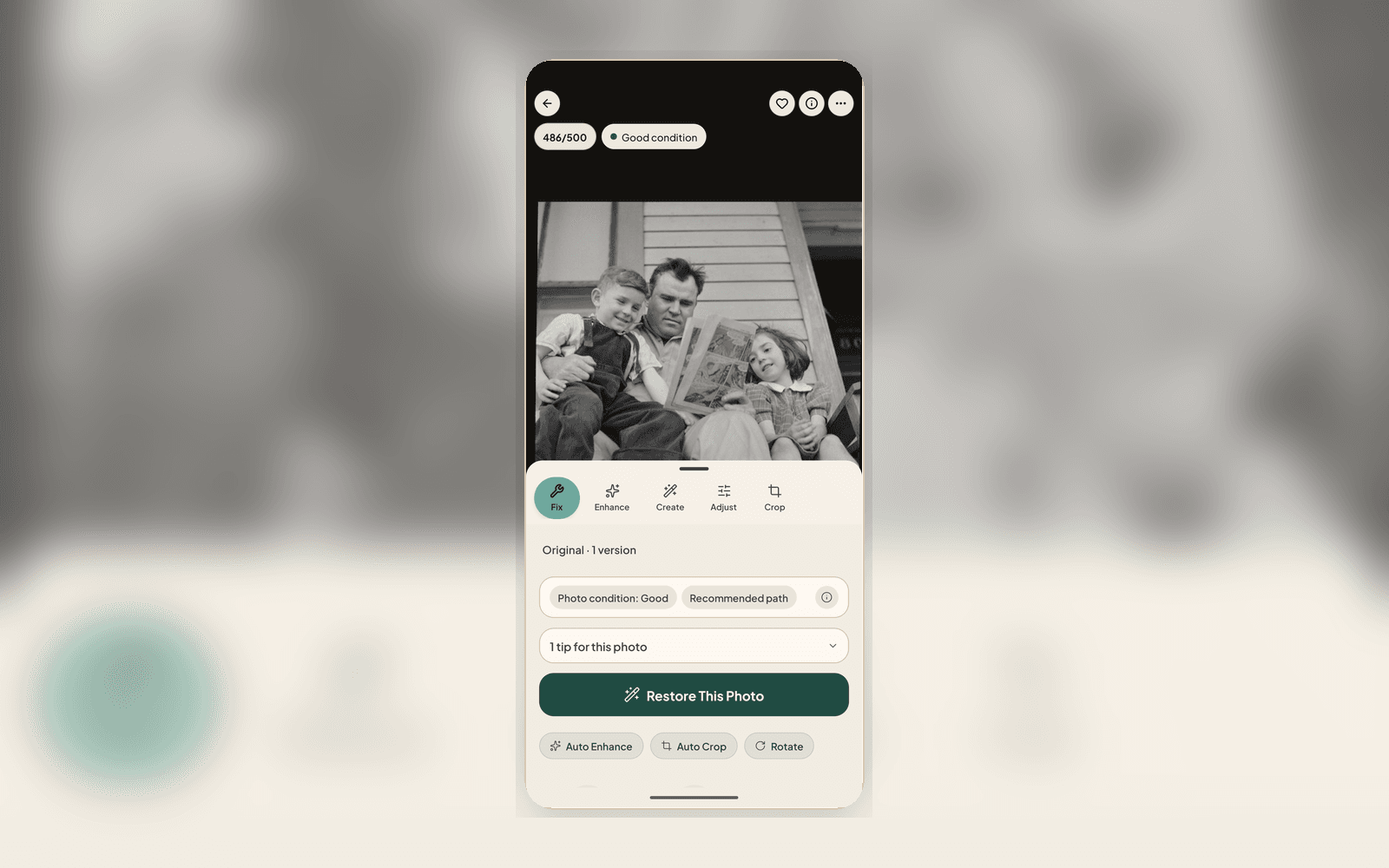
GuideWhat Is the photo check? The AI Report That Checks Your Photo Before You Restore
Every upload gets a photo check report covering damage labels, era estimate, next best actions, and conservation guidance, all before you use a single restore.
 Guide
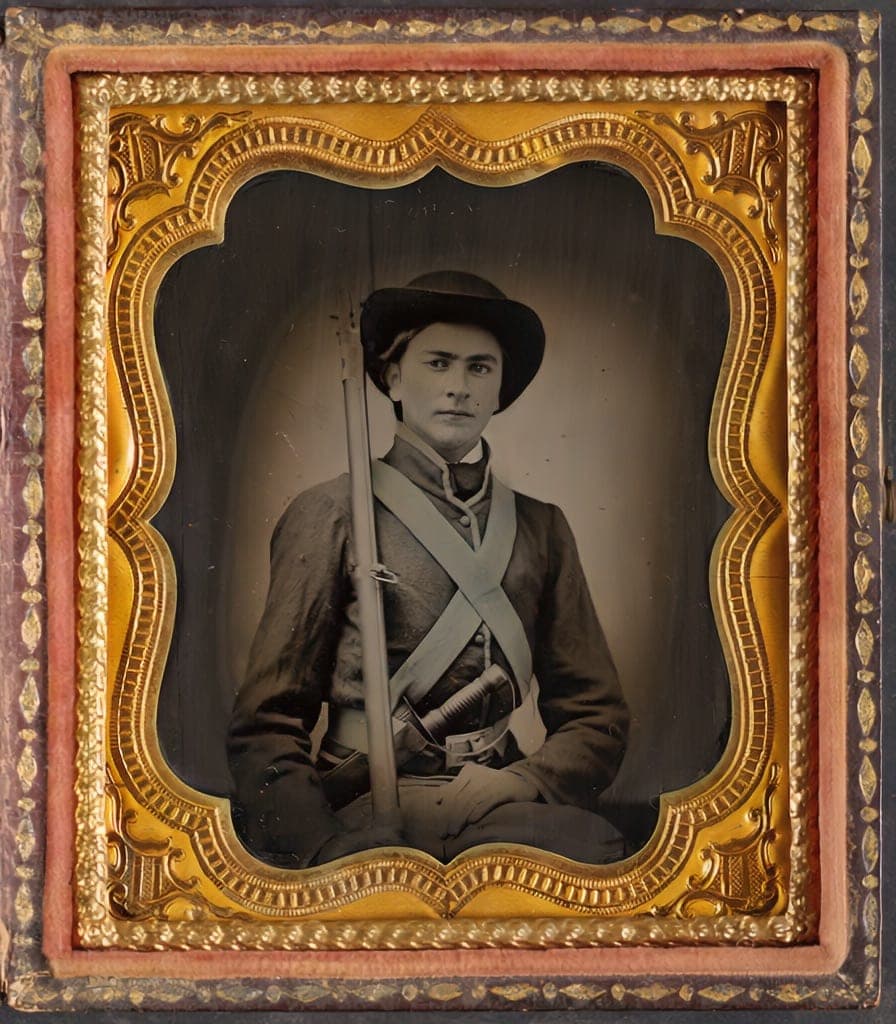
GuideThe Family Historian's Guide to AI Photo Restoration
If you're building a family archive alongside your tree on Ancestry or MyHeritage, here's how to use AI photo restoration without compromising archival integrity.