Reduce Glare in Photo Scans
Reduce glare spots from glossy prints scanned under overhead light or captured through glass frames. Works best on mild to moderate glare. For heavy glare, rescanning with indirect light is often the better first step.
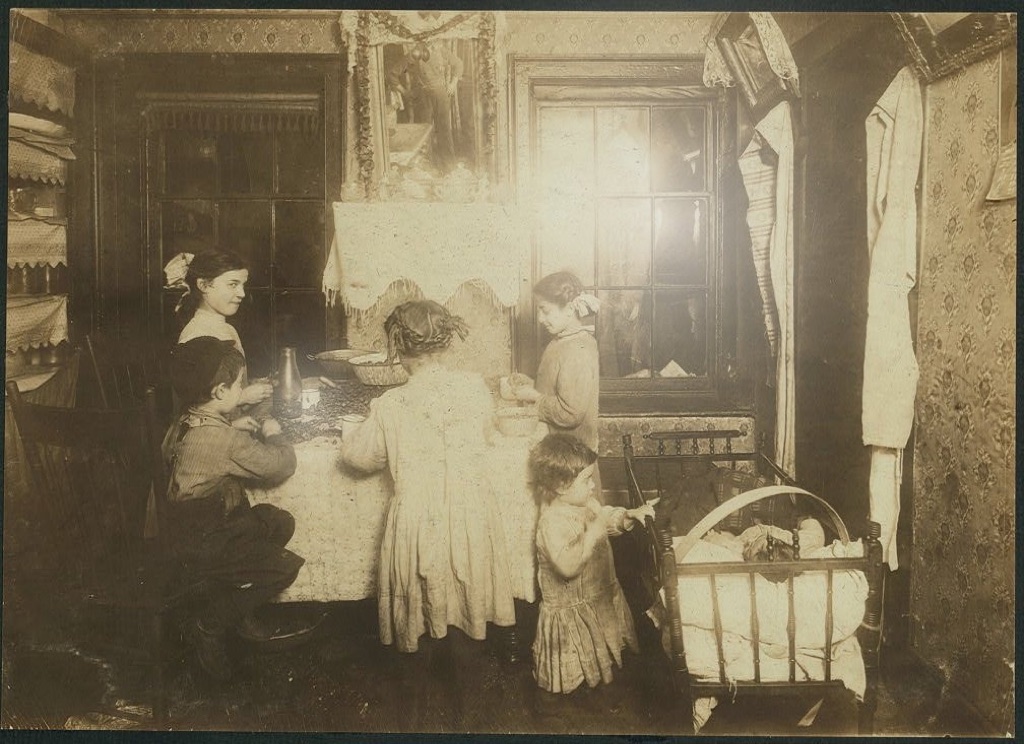 After
After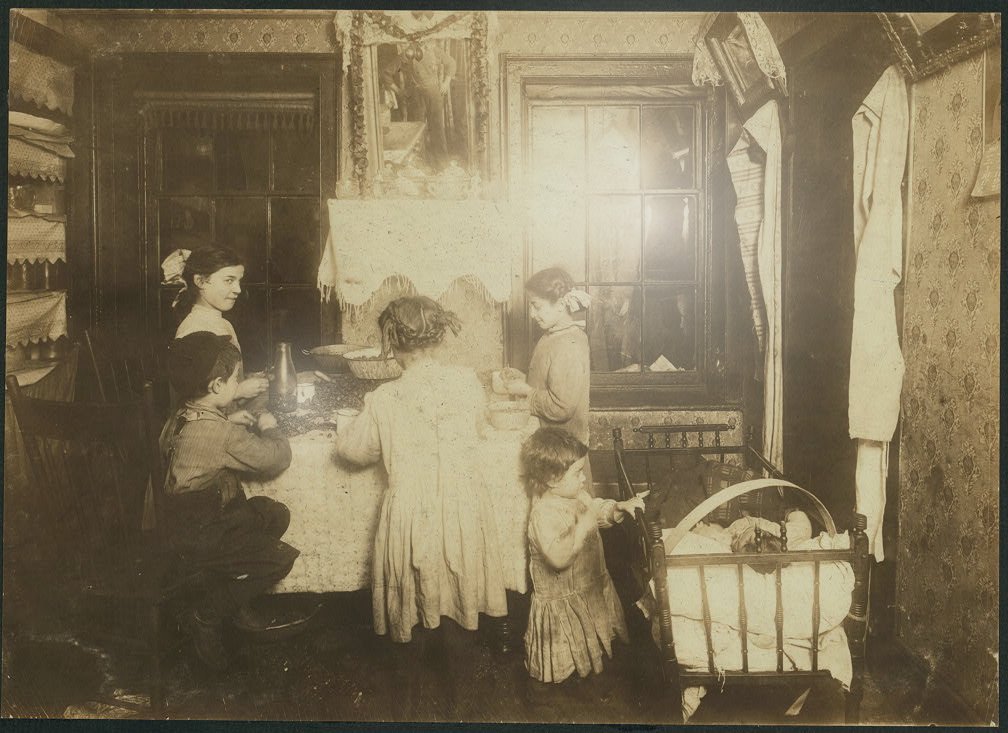 Before
Drag to compare the original with a glare-reduced version
Three steps to a cleaner scan
Upload
Upload your scan or phone capture with glare. Photo Insight detects hot spots and recommends deglare when it can help.
Reduce glare
The glare-reduction pass suppresses lighter reflections where enough underlying image detail is still visible.
Continue
Review the result, then continue to restore, colorize, or enhance. Deglare works best as the first step before other restoration tools.
When deglare helps, and when it does not
Glossy Print Scans
Glossy photo paper reflects overhead light during flatbed scanning, creating white or washed-out patches. Deglare can soften these while keeping the original scan available.
Photos Behind Glass
Framed photos and album pages under plastic sleeves reflect ambient light when photographed with a phone. Deglare can reduce these reflections.
Mild to Moderate Glare
Deglare works well on glare that partially obscures the image. Small hot spots and soft reflections are the best candidates. Results improve when the underlying detail is still partially visible.
When to Rescan Instead
Heavy glare that completely washes out an area is better solved by rescanning: use the Nostalgia app's glare-burst capture, which fuses a short multi-shot burst to remove reflections from glossy prints. Indirect natural light and no flash help any capture; Google PhotoScan's multi-angle mode is a fine alternative.
This step belongs to the family archive
After the tool runs, the Original, Restored version, Photo Insight, captions, people, notes, and private shares stay together in Archive. The result is not a loose download; it becomes one more finished record in the archive.
Fix glare in your scans
Upload a glare-affected scan and try a conservative reduction pass. If the glare is heavy, the scanning guide has tips on capturing cleaner originals.