The problem family tree import solves
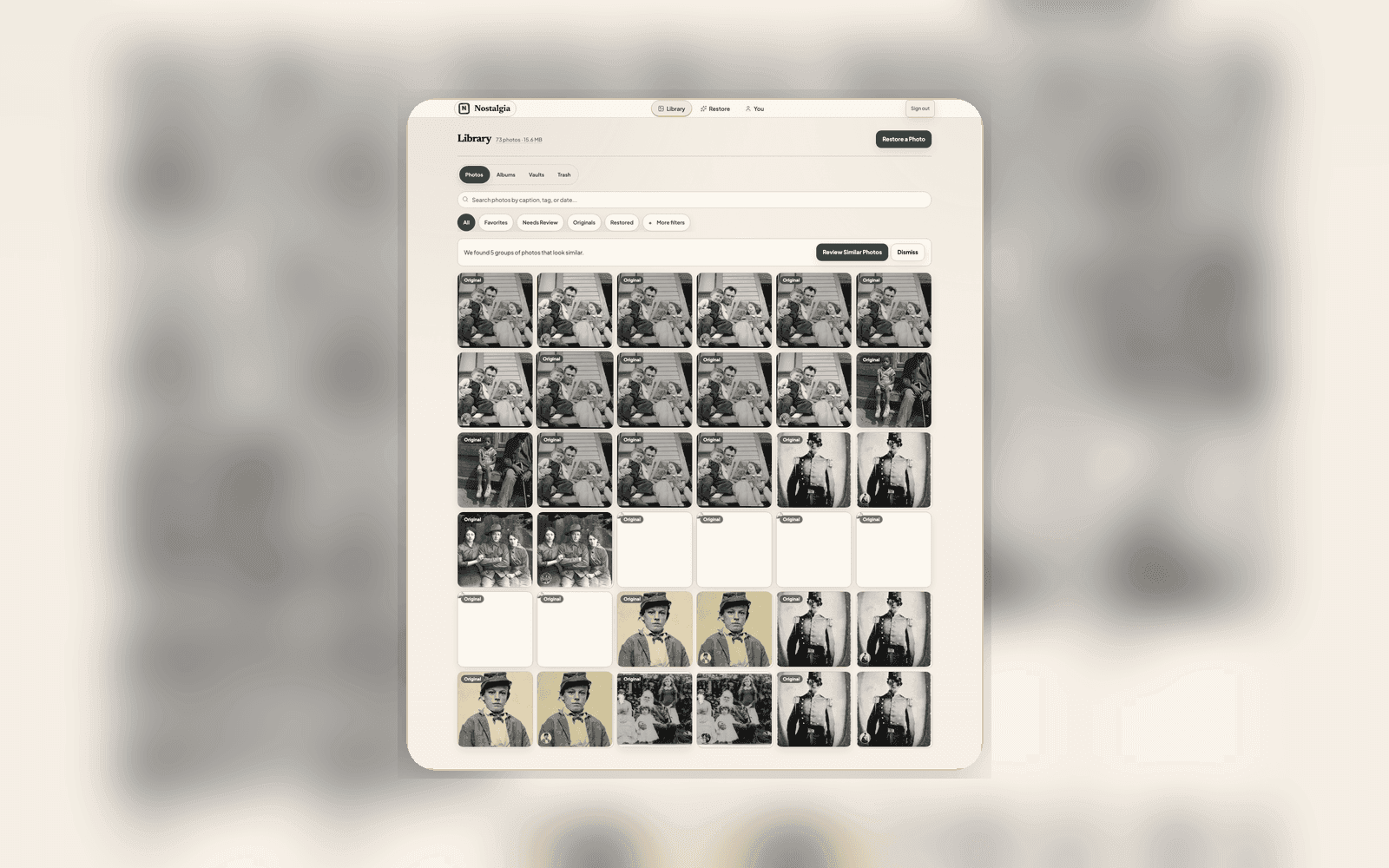
If you've already done the work to build a family tree (in FamilyEcho, Ancestry, MyHeritage, FamilySearch, RootsMagic, anywhere), you've probably also accumulated a couple thousand inherited photos that are not attached to any of those people. Naming them by hand is the kind of photo-sorting task that never finishes. This is optional ranking fuel for an album session — not a requirement to get started. The standing method is the family-tree import guide and the inherited-photos playbook.
If you already keep a tree, import it so names suggest while you scan. You export the tree, drop the file into Nostalgia on the web, and the archive ranks photo matches by name, era, and birth/death window. Confirm or skip, photo by photo. You do not need a tree to start.
What GEDCOM is, in case you've never used one
GEDCOM (Genealogical Data Communication) is the file format every major family-tree app exports to. Nostalgia also accepts GEDZIP and FamilyEcho FamilyScript. These exports describe the people in your tree: names, dates, places, parents, spouses, and children. Nostalgia reads the tree, builds Person records, and uses names and date ranges to suggest matches against the photos already in your Archive.
Step-by-step: from .ged file to populated archive
The flow is intentionally cautious. Nothing commits until you've reviewed it.
- Export GEDCOM from your tree app. Every major one supports this. Save the .ged file locally
- Open Nostalgia on the web and go to Family → People → Import
- Drop the export in. You see a preview of every person Nostalgia parsed (names, dates, relationships) before anything is committed
- For each person, Nostalgia ranks the top photo suggestions from your archive. The strongest matches appear first; the rest stay searchable
- Confirm matches you're sure of, skip the ones you're not, leave the rest for later. Re-imports are safe, because Nostalgia merges by GEDCOM xref ID so you don't get duplicates
How the matching works
Suggestions are scored on two signals. The first is name confidence: does the photo's existing caption, Archive Note, or AI-detected text mention this person's name? The second is era confidence: does the photo's estimated decade fall inside the person's birth-to-death window, with a generous grace period for the photos taken late in life or shortly after death.
We deliberately keep the matching conservative. False positives are worse than false negatives in an archive: the cost of one wrongly-named relative is high, the cost of one un-named photo is low. You'll see five strong candidates, not fifty weak ones.
What this is, and what it isn't
Tree import is read-only. Nostalgia is not trying to be your tree-editing software. Keep the canonical tree where you already keep it (FamilyEcho, Ancestry, MyHeritage, wherever) and re-import whenever you want the archive to reflect new branches. We treat your tree as a source of truth that lives somewhere else.
What we add is the photo side of the work. Once a person is named via GEDCOM (or face clustering, or manual entry), every photo of them links to the same record. Their detail page becomes a chronological photo-life of one relative. Memorial vaults can spin up from any record in one tap. Photo Story reveals can pull from a person's confirmed set. The tree is the spine; the photos hang off it.
Privacy and re-imports
The GEDCOM stays inside your private archive. We don't share it, don't cross-reference your tree against other users, and don't make anything public unless you create a memorial vault or share a Family Vault link. Delete the imported tree any time and every derived photo link goes with it.
Re-importing is safe by design. Each person carries the GEDCOM xref ID from the original import, so the second .ged you upload merges into the existing records instead of duplicating them. Move a person between trees, add a new branch, or fix a date, then re-import and the archive catches up.
Try it
Family tree import is on the web today (mobile devices browse the result). Read the import guide at /guides/import-family-tree and the album-session playbook at /guides/organize-inherited-photos. The feature overview is /features/family-tree. The /for-family-historians overview has more detail on how the photo-and-tree pairing fits a typical genealogy workflow.
Related posts
 Guide
GuideThe Family Historian's Guide to AI Photo Restoration
If you're building a family archive alongside your tree on Ancestry or MyHeritage, here's how to use AI photo restoration without compromising archival integrity.
 News
NewsMemorial Vaults: A Way to Share a Relative's Photos That Survives Them
When a relative dies, their photos usually get scattered, to a Dropbox link, a Facebook album, or nowhere. Memorial vaults are a different approach: a private, auto-populated tribute the family can hold onto.